

It’s a classic question asking about very simple moves which will take from us at most 10 seconds, then we will be able to go to our favorite search engine: Google
Far from what we see on our end and the simplicity of the operation, there are under the hood several trips, meet-ups, fights, protocols, and a few handshakes that are happening whether our destination is google.com or another site.
We will take a journey under that hood with simplifying the concepts as possible. Let’s cross our fingers that we finish our journey and return back home safely and without anyone missing.
Let’s divide our journey into stations or phases for more organization and if we need to take rests. Those phases will be:
Before typing “google.com”
Let’s get back in time and think about what did you need to be able to make this operation which is going to the “google.com”. Let’s make it even more simplified with an analogy. In real-life, What should you have to go to a friend’s place or a particular place?
Yes, you are right, you should know its address or location, and the two other things that you will need are the way to get there and the device that will take you there, it could be your legs or a vehicle. Now, that device in web and networking terminology has a role name which is the client, and it’s the web browser (Chrome, Firefox, Safari, IE, etc..) in our case, but it could be a mobile application or any other application that can access the web.
You can think of the web browser as a cab (taxi) because it knows the way to your destination and will take you there. You just need to provide the address.
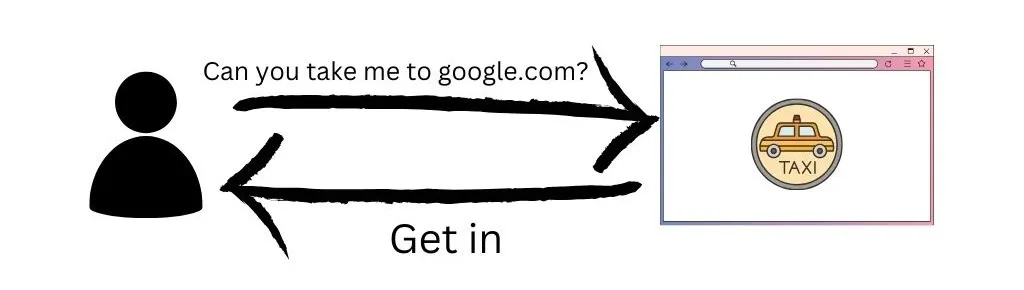
You can think of it like that for simplicity but what actually happening is that, you are giving the cab an address of a place, then it will go to that address, pick up the place and bring it back to you.
The anatomy of the URL
URL stands for Uniform Resource Locator, and it’s used to locate the resource you want to go to. It consists of parts like the transfer protocol, the domain name, and the path or location you want to reach.
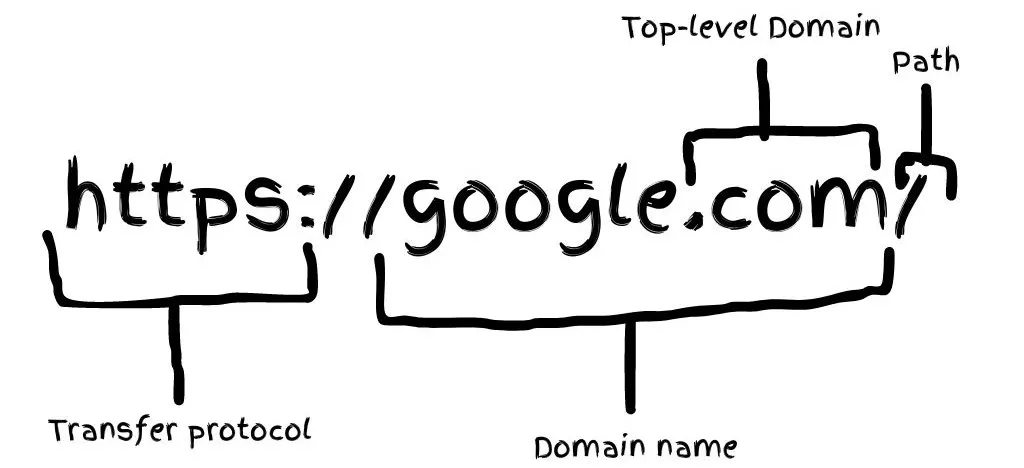
https: is the secure version of HTTP and it stands for Hypertext Transfer Protocol, and it tells the browser to encrypt the transferred data using TLS/SSL before sending it to the server.
Top-level Domain: (.com, .net, etc..) is the second-highest domain in the DNS hierarchy and it plays an important role in the DNS lookup
Domain name: is the memorable name to us that points to a unique IP address that belongs to the server that hosts the site files
Path: is the location or file of the site you want to go to (actually brought to you), and in this case “/” is usually the site homepage
DNS lookup
But how does the browser know how to go to the address you have provided?
Well, let’s first mention that the address you have provided like “google.com” or “facebook.com” is created with letters and meaningful words to be easily remembered by us humans, but the actual addresses for those sites are in numbers like “216.58.210.142”, and it’s called an IP (Internet Protocol) address.
Actually, the IP address is the address of the server that hosts the site files (HTML, CSS, JavaScript, images, fonts, etc..), and that’s clarifying a lot of mystery. You need to go to a particular site, and that site is made of files, and those files are stored on a computer, which is the server, so what your browser is actually going to or sending a request to, is the server that is hosting the site files.
But how does the browser know that the easy-to-remember address like “google.com” is linked with that IP address associated with the server? Well, actually the browser doesn’t if it’s the first time visiting that site, and it will need to ask for it. Now is the time when DNS (Domain Name System) will come into play.
The DNS is a server that stores the records of domains like “google.com” and their IP addresses.
To get the IP address, there is a sequence of steps that will need to be taken; if a step succeeds, the browser gets the IP address; otherwise, the next step will be taken. The steps will be like the following:
- The browser checks its cache (local storage) for the host IP
- The browser asks the OS (operating system) if it has the host IP in its cache
- The OS asks the DNS resolver which is usually your ISP (Internet Service Provider) if it has the IP in its cache
- The DNS resolver asks the Root Server in the DNS hierarchy which must be known to the DNS resolver. the Root server check its cache for the IP and if it’s not there, it will direct the DNS resolver to the TLD (Top Level Domain) server like .COM
- The DNS resolver asks the TLD .COM if it has the IP address in its cache, and if it’s not there, the TLD will direct the DNS resolver to the Authoritative Name Servers associated with the domain “google.com”
- The DNS resolver asks The Authoritative name Server if it has the associated IP address
- The Authoritative Name Server gives the DNS resolver the associated IP address if there is actually a domain called “google.com” on the web.
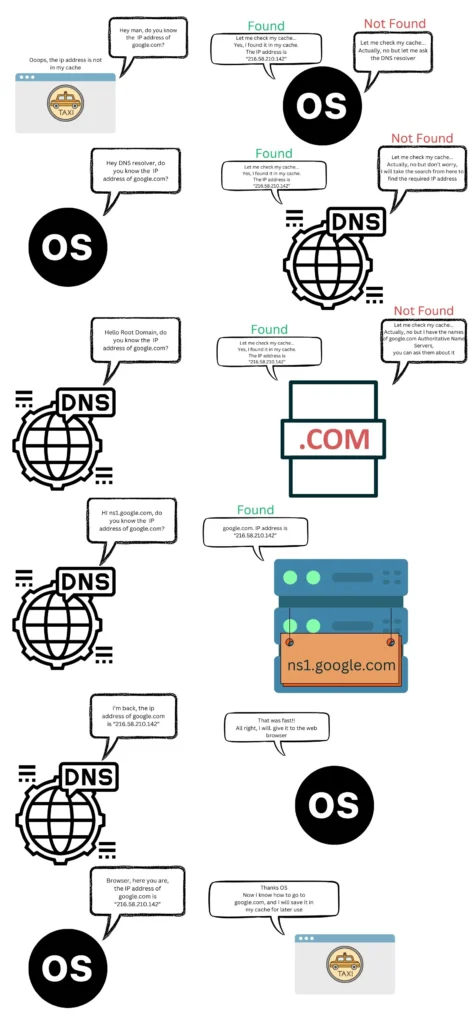
Wow, that was a long trip with a lot of questions, but fortunately, it happens in seconds or second fractions of our time, and its pattern is asking every associated server and checking every associated storage if it has the IP address of the domain name host, then moving to the next one if it has not.
TCP/IP
Now to create a secure connection between the client and the server, they will need to follow the TCP (Transmission Control Protocol) internet protocol, which consists of three handshakes:
1- The client sends client hello to the server to check if the server is open for a new connection or not and sending the SSL/TLS versions and the encryption algorithms that it can work with
2- The server sends server hello to the client if it’s open for a connection and chooses the preferred SSL/TLS version and the encryption algorithm, furthermore sends its public key to the client to verify it
3- The client checks and verify the server key and generate pre-master-key to both use it from now on, during the connection
And now the connection is on and secured.
HTTPS/SSL
Now, the browser will need to determine if it should transfer its request including the data to the server without encryption using HTTP on port 80 or encrypt it first and transfer it using HTTPS on port 443.
The browser will check its HSTS list which is a list that contains the sites that requested to be accessed through HTTPS. if “google.com” is in the HSTS list, then the browser will use HTTPS, otherwise, it will use HTTP. In other cases, you will try to access a site with HTTP but you will be redirected to HTTPS if the site is using SSL.
Encryption can be symmetric, which means there is only one key that can encrypt and decrypt the data or message, so the sender and the receiver will have the same key, the sender will encrypt the data, then send it, and the receiver will use the same key to decrypt it and accesses the data, The other encryption method is called asymmetric which means that there is a pair of keys, one is private with the sender and the other one is public and can be shared with the receiver, so the sender will use the private key to encrypt the data, then send it, and the receiver will use the public key to decrypt it. The receiver can also use the same public key to encrypt a message and send it back to the sender, and the sender can decrypt it with the private key.
SSL stands for Secure Socket Layer, and it’s an internet security protocol. There are SSL certificates, which give the sites the ability to use HTTPS instead of HTTP and provide a green lock next to the site URL, which shows trust and security to users.
But before we can access a site that uses HTTPS, the client (web browser) and the server (host) will have a negotiation on how they will communicate securely, and that negotiation is called the handshake.
The handshake process is actually three handshakes:
1- The client sends client hello to the server to check if the server is open for a new connection or not, and sends the SSL/TLS versions and the encryption algorithms that it can work with
2- The server sends server hello to the client if it’s open for a connection and chooses the preferred SSL/TLS version and the encryption algorithm, then it sends its public key to the client to verify it
3- The client checks and verifies the server public key and generates a pre-master-key for both to use it from now on, during the connection
And now the connection is on and secured.
Firewall
Once the browser request is heading to the server to retrieve google.com files, it will need to first pass through the firewall. You can think of the firewall as an intermediate security gate between you and the internet. Its job is to check every ongoing or upcoming request and determine if it should pass or not based on predefined rules.
That same firewall will check the response of the server including the google.com page, before reaching your device. The firewall can be either hardware or software, and it can be used to secure devices other than your personal computer like the server for example.
Load Balancer
The sites that used to get a lot of visitors every day, like Google, will usually have many servers for redundancy, so let’s say that you have a fast food restaurant with one employee taking orders from the customers, and after a few months, your restaurant becomes very successful and there are a lot of customers in a queue waiting to order because you have only one employee. You will then need to hire one or even two more employees to divide the load of the customers between them. Now, what if all the customers, for any reason, were waiting in one queue and left the other two empty. Now you will need a system to divide the customers between the three employees to make a balance and that’s the job of the load balancer
The load balancer’s mission is to control the network traffic and distribute it evenly or in some sort of balance using algorithms like Least connection, Weighted response time, Round robin and other algorithms.
So, in our journey, and after the DNS lookup, the resolved IP address belongs to the load balancer, and the client request will go to the load balancer before going to the main servers that are hosting the site files.
Web Server
The web server is the software on the server that serves the site files and using the HTTP and other protocols to handle the request of the client. it can control the permissions and how a user accesses hosted files.
The web server is accessed by the domain name, and it serves the site static files like HTML, CSS, JavaScript, images, font, etc..
Application Server
if the client requesting a dynamic data which will be generated on the server and could be retrieved from the database, the application server is one which will take this mission to handle the request and run the required code before sending a response.
Database
The database is a data storage which stores the data in tables and records to easily update, delete or retrieve the required data